Demo Access Options
CNB Codespace
- Login to CNB repo.

- Fork the repo.

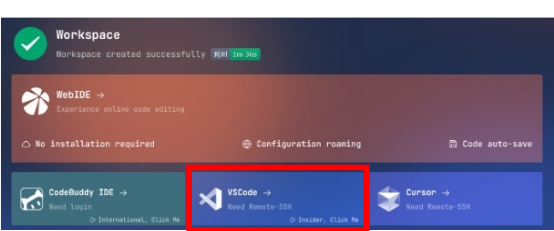
- Click Workspace.

- Connect to the workspace (VS Code recommended).
- Jump to the section “How to run Fusion Framework with Docker Image”.

Gitpod
- Login to Gitpod.

- Create a new project.
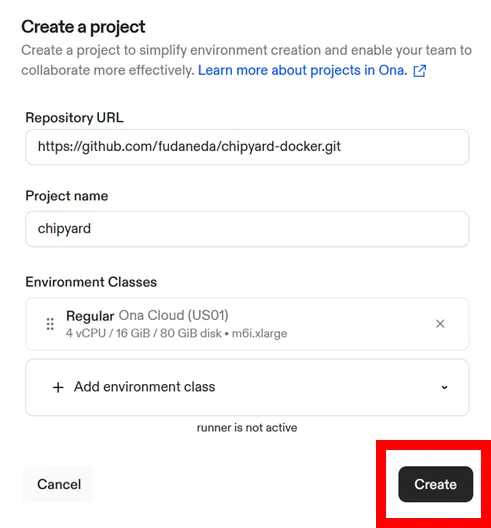
- Create a new environment.

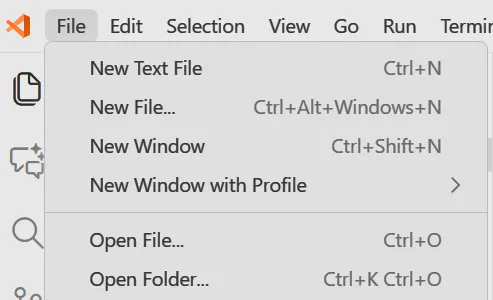
- Open the workspace in VS Code.
- Jump to the section “How to run Fusion Framework with Docker Image”.
Local Docker Environment
-
Load the docker image.
Terminal window docker load -i chipyard.tar -
Run the docker image.
Terminal window docker run -it docker.cnb.cool/fudaneda/docker/chipyard /bin/bash
How to Run Fusion Framework with Docker Image
-
Change the workspace folder to
/root/chipyard/.Terminal window cd /root/chipyard -
Build the front-end compiler and run the Taylor example compile.
Terminal window cd /root/chipyard/generators/fgra/app-compiler./build.shcd /root/chipyard/generators/fgra/benchmarks/taylor../compile.sh taylor kernelcd ../ && ./dot2json.sh -
Activate the chipyard conda environment and build the hardware.
In CNB, you can change
VERILATOR_THREADSinbuild-verilator.shto 64 for faster simulation.Terminal window cd /root/chipyard/generators/fgrasource /root/chipyard/env.sh./scripts/build-verilog.sh && ./scripts/build-verilator.sh -
Build and run the mapper to generate
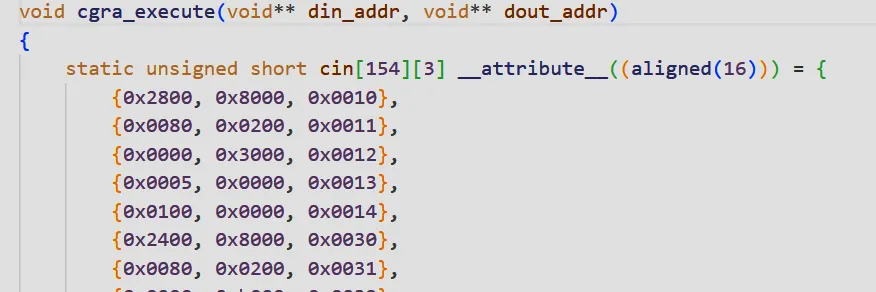
cgra_execute.candcgra_call.txt.Terminal window conda deactivate && conda deactivatecd /root/chipyard/generators/fgra/fgra-mapper./build.sh./run.sh
cgra_execute.c:
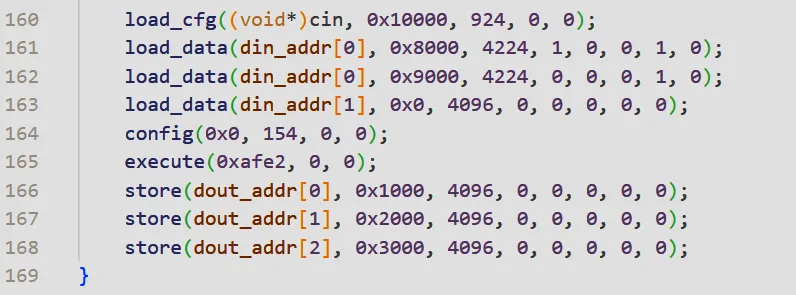
cgra_call.txt:

-
Update
taylor.caccording to the generated artifacts and build the binary.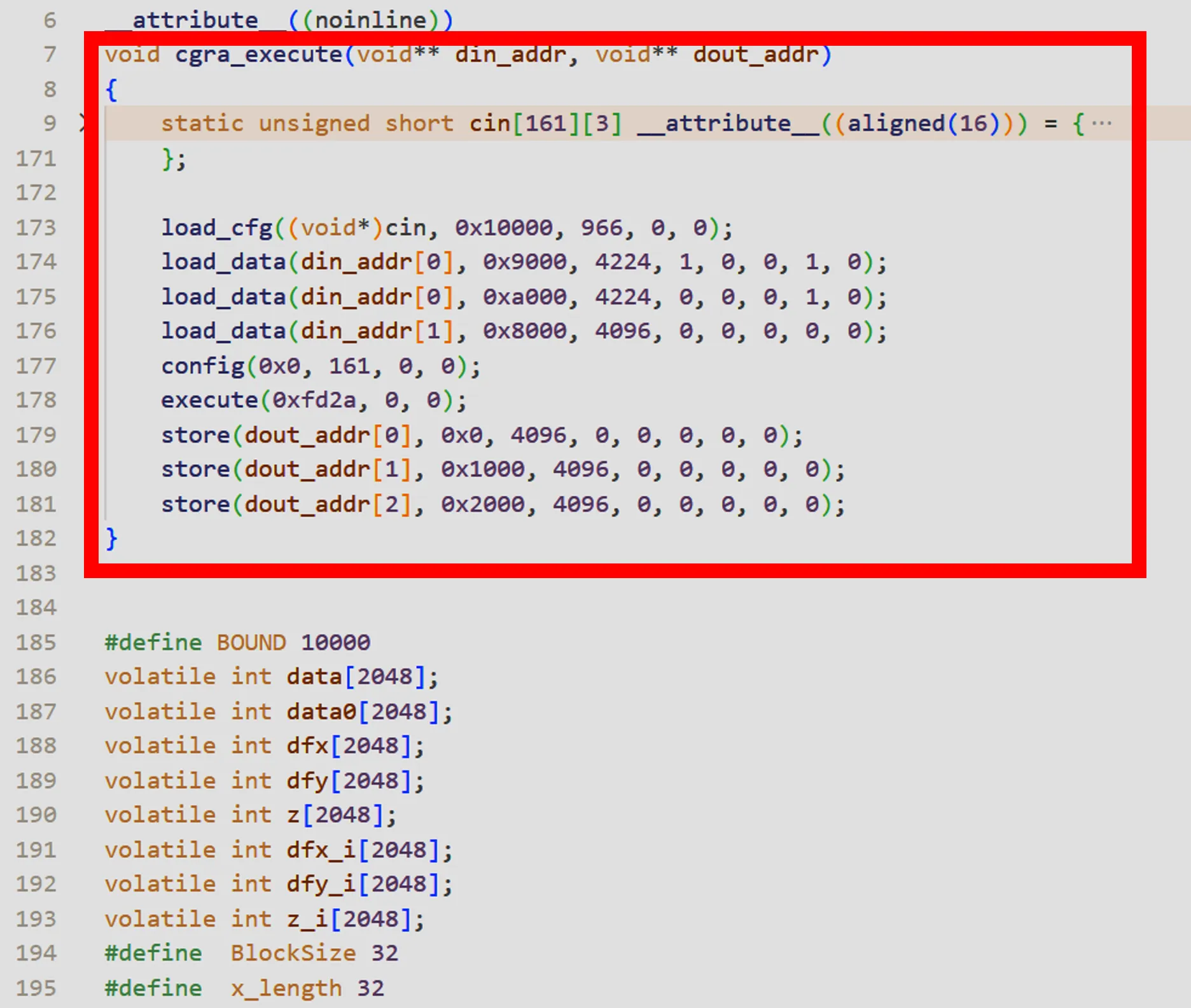
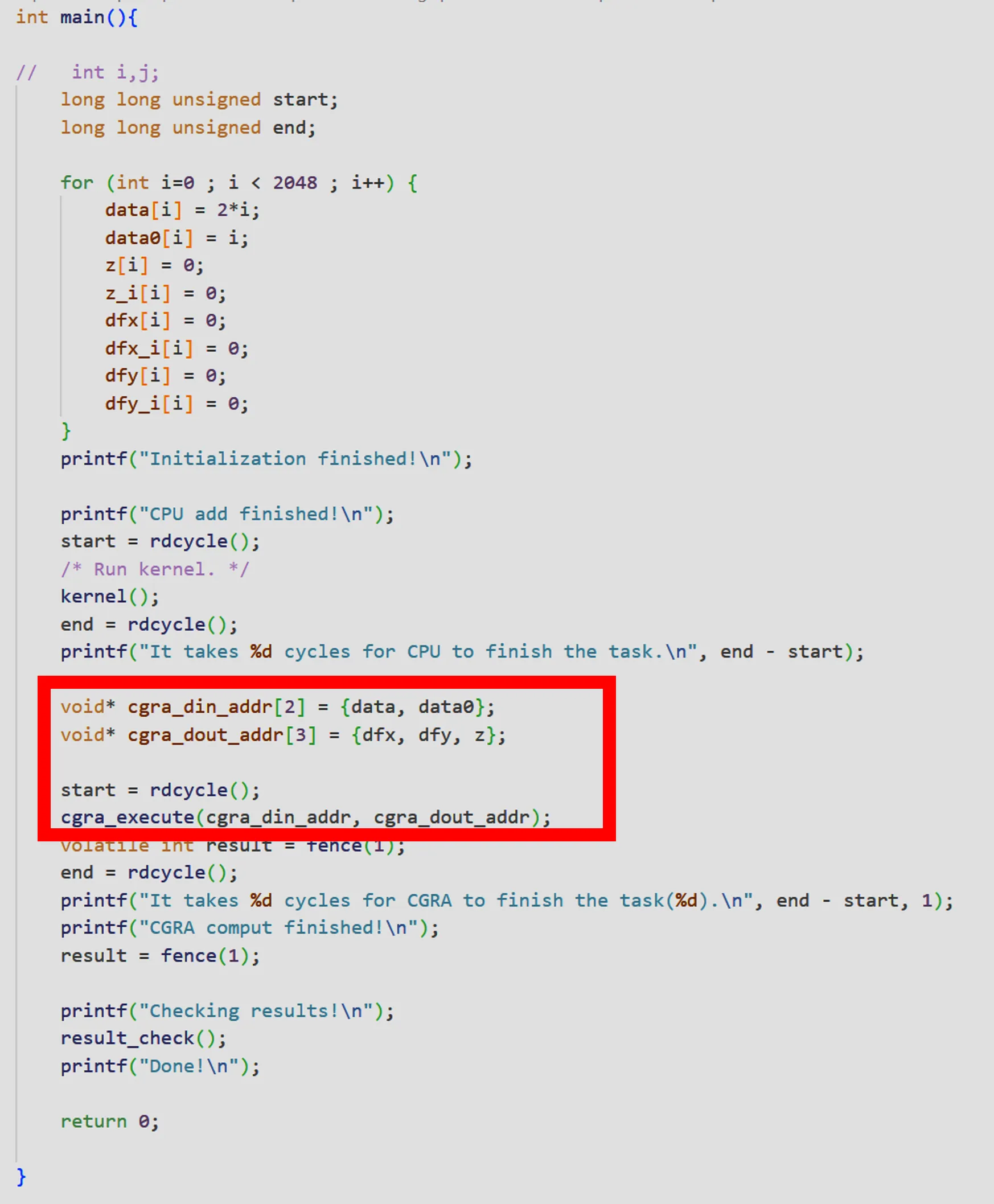
Terminal window cd /root/chipyard/generators/fgra/software/tests./build.sh -
Generate the simulation executable and run it from the FGRA root directory.
Terminal window cd /root/chipyard/generators/fgra./scripts/run-verilator.sh taylor
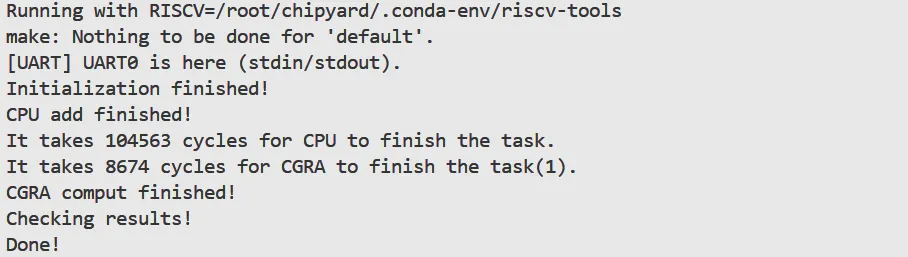
Success!